Docs · Collaborate
Sharing & live editing
Invite people to view or co-edit a deck, set who can do what, and work together in real time.
Afterdeck decks are built to be worked on together. Share a deck for read-only viewing, or bring collaborators in to edit alongside you live, cursors and all.
Share a deck
Click the blue Share button in the editor's top bar. From the dialog you can:
- Invite people by email. Type or paste addresses, choose Editor or Viewer, and send. They'll find the deck under Shared with me in their library.
- Turn on a link. Under General access, switch from Restricted to Anyone with the link, choose whether the link grants view or edit, and Copy link.
A link set to "view" lets anyone open and present the deck, no account needed. A link set to "edit" lets signed-in people make changes.
Roles: who can do what
There are three roles, and each can do everything the one before it can, plus more.
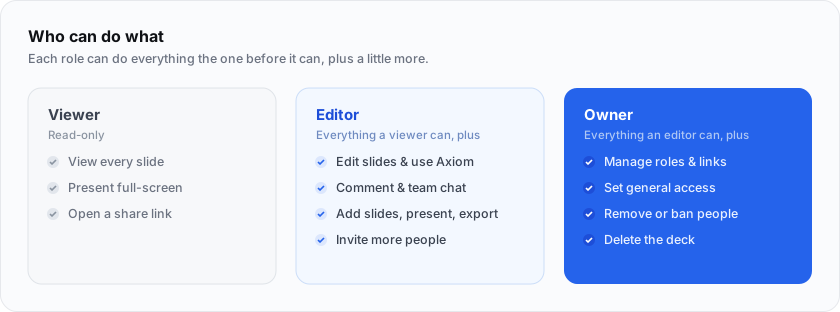
- Viewers can open and present the deck, and nothing else. No editing, no commenting.
- Editors can do all that, plus edit slides, use Agent, comment, chat, add slides, export, and invite more people.
- Owners can do all that, plus manage roles and links, set general access, remove or ban people, and delete the deck.
Working together live
When more than one person is in a deck, collaboration becomes real-time:
- Presence. Collaborators' avatars stack in the top bar. Click the cluster to see everyone in the deck and which slide they're on.
- Live cursors and selections. You see each person's cursor and what they've selected, labeled in their own color. If two people pick near-identical colors, Afterdeck nudges one so everyone stays easy to tell apart.
- Changes morph in. When a collaborator edits, the change animates in with a brief highlight so you can see what moved.
Your color and avatar come from your profile.
Managing access
As the owner, open the Share dialog and use the menu next to any person to:
- Change their role between Editor and Viewer.
- Remove them.
- Ban them temporarily (1 hour, 1 day, or 1 week), which is useful for pausing a link-based collaborator without deleting their work.
Changes take effect within a few seconds. Editors can invite people and see who's on the deck, but only the owner manages roles, links, and bans.
Sharing more than one deck
Want to share a whole batch of decks at once? Share a workspace instead. Everyone with access to the workspace can reach the decks inside it. See Organizing decks.
Next steps
Comments & chat Leave feedback and talk it through.
Organizing decks Workspaces, folders, and bulk sharing.